


Document parsing for RAG works best when you route each file to the right parser, keep structure such as headings and tables, and test parse quality before indexing.
Poor parsing is one of the most common reasons a RAG system retrieves the wrong text or none at all.
This guide covers file classification, parser choice, table handling, metadata and a quality checklist you can apply to an enterprise document set.
Why Parsing Decides RAG Quality
Chunking, embeddings and ranking all work on the text the parser produces. If a two-column PDF is read across columns, a table is flattened into a line of numbers, or a scan returns no text, later steps cannot recover it.
Parsing problems also hide well. The index fills up, demos look fine, and failures appear only on specific document types.
Step 1: Classify Every File First
Sort files before parsing. A simple classifier can check:
• Born-digital or scanned: does the PDF have a usable text layer?
• Layout: single column, multi-column, forms or slides
• Tables: none, simple grids, or merged and multi-page tables
• Format: PDF, DOCX, PPTX, XLSX, HTML or email
• Language: affects OCR and model choice
Route each class to a different parsing path rather than using one parser for everything.
Step 2: Choose Parsers by Class
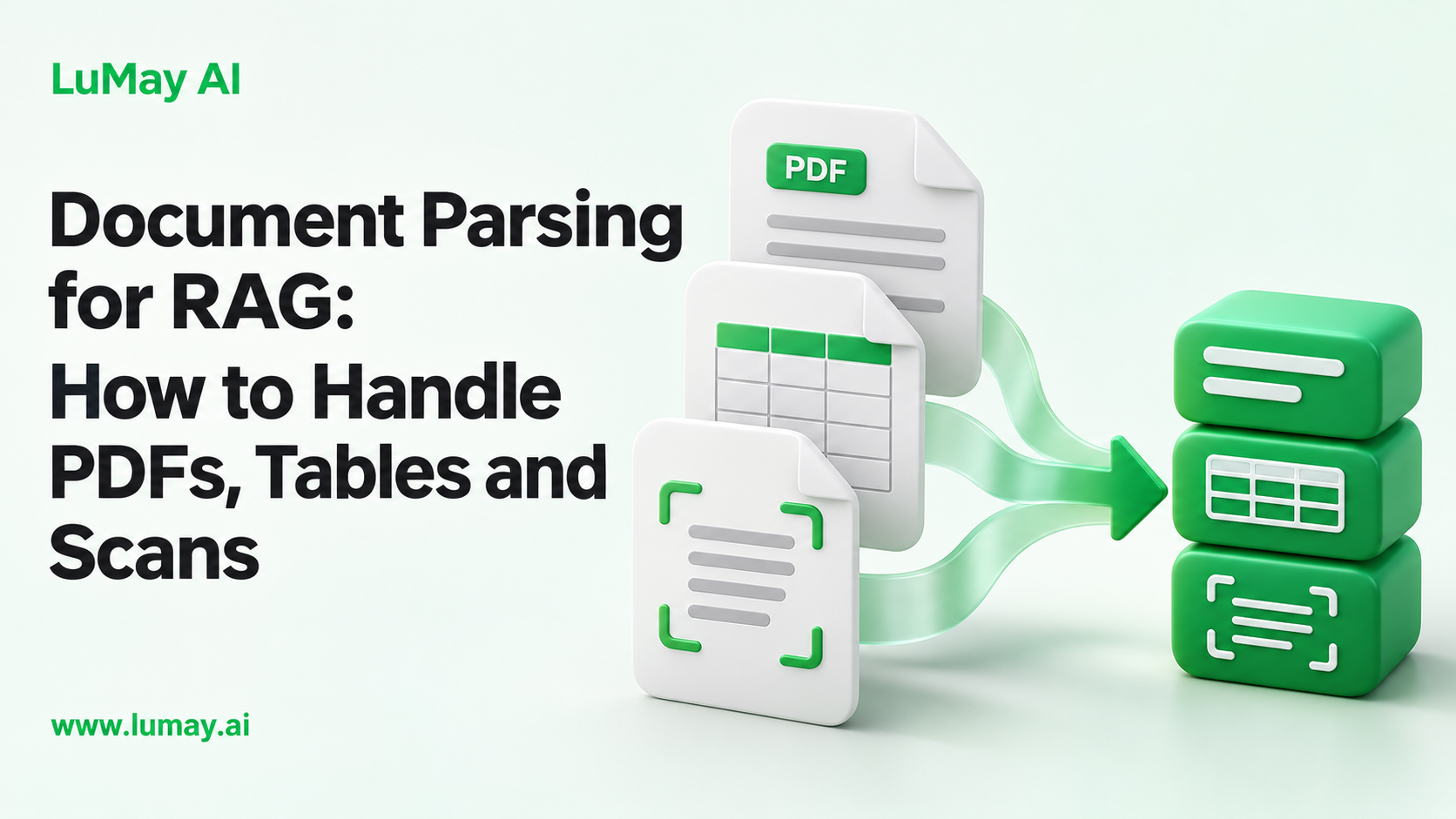
| Document class | Parser approach | Example tools |
|---|---|---|
| Born-digital, simple layout | Text-layer extraction | pdfplumber, PyMuPDF |
| Born-digital, complex layout | Layout-aware parser | Docling, Unstructured |
| Scanned or image-only | OCR with layout analysis | Azure Document Intelligence, Amazon Textract, Google Document AI |
| Heavy tables | Table structure recognition | Textract tables, Azure layout, Docling |
| Office files and HTML | Native format parsers | Unstructured, Docling |
Check each tool's current documentation for supported formats and limits: Docling, Unstructured partitioning, pdfplumber, Azure layout model, Amazon Textract, Google Document AI layout parser and LlamaParse.
Start with the cheapest path that passes your quality checks. Escalate to cloud OCR or vision models only for files that fail.
Step 3: Preserve Structure
Output structured text, such as Markdown or JSON elements, not a flat string. Keep:
• Headings and section paths: so chunks carry context like "Policy > Travel > Per diem"
• Reading order: especially for multi-column pages
• Lists and numbered clauses: important for contracts and procedures
• Page numbers and element IDs: so answers can cite their source
Remove repeating headers, footers and page numbers that add noise.
Step 4: Handle Tables Deliberately
Tables break naive chunking because meaning runs across rows and columns.
• Keep each table whole as one unit, with its caption and section path
• Add row-level text that repeats column headers, such as "Model: X200; Voltage: 24 V"
• Use HTML for complex tables with merged cells, since Markdown cannot represent them
• Store a typed copy in a table or dataframe for counts, sums and comparisons
• Repeat headers for tables that span pages
Route numeric questions, such as "which plan has the highest limit," to a query over the typed table, not to vector search.
Step 5: Add Metadata
Attach title, source system, owner, date, version, access group and document type to each element. Metadata enables filtering, freshness rules and permission-aware retrieval. See permission-aware retrieval for SharePoint RAG.
Step 6: Chunk on Structure
Split on headings and element boundaries, not fixed character counts alone. Our guide to RAG chunking strategies compares the options.
Worked Example: Insurance Policy Documents
Illustrative example. An insurer indexes 8,000 policy PDFs, a mix of born-digital files and older scans, many with coverage tables.
• Classification: 70 percent born-digital, 30 percent scanned (illustrative figures)
• Born-digital path: layout-aware open-source parser, output to Markdown with section paths
• Scanned path: cloud OCR with layout and table detection
• Tables: coverage tables stored whole, with row text and a typed copy for limit questions
• Quality gate: 100 sampled pages checked for reading order, table accuracy and missing text before full indexing
The team found that scanned endorsements needed manual review rules, so they flagged low-confidence OCR pages for a human check.
Parse Quality Checklist
• Sample pages from every document class reviewed side by side with the source
• Text coverage checked: no blank outputs for pages with visible text
• Reading order correct on multi-column pages
• Table cells land in the right rows and columns
• OCR confidence recorded, with low-confidence pages flagged
• Headings and section paths present in output
• Retrieval tests rerun after any parser change; see how to evaluate a RAG system
Common Mistakes to Avoid
• One parser for every file: cheap for clean files, poor for scans and tables
• Flattening tables: row values lose their column meaning
• Dropping page references: answers cannot cite or be checked
• No re-parse plan: parser upgrades need a reindex and regression test
Limitations
Parser accuracy depends on your documents; vendor accuracy claims may not hold on your files. Handwriting, poor scans and unusual layouts may still need human review. Not verified: any fixed accuracy figure.
Next Step
If your RAG project depends on PDFs, scans or table-heavy files, LuMay's RAG development team can help set up data preparation and document processing before you index.
• Azure Document Intelligence layout model
• Amazon Textract document analysis